
Download PDFOptim – Free PDF Compression, Reduce, Optimize Tool
Overview
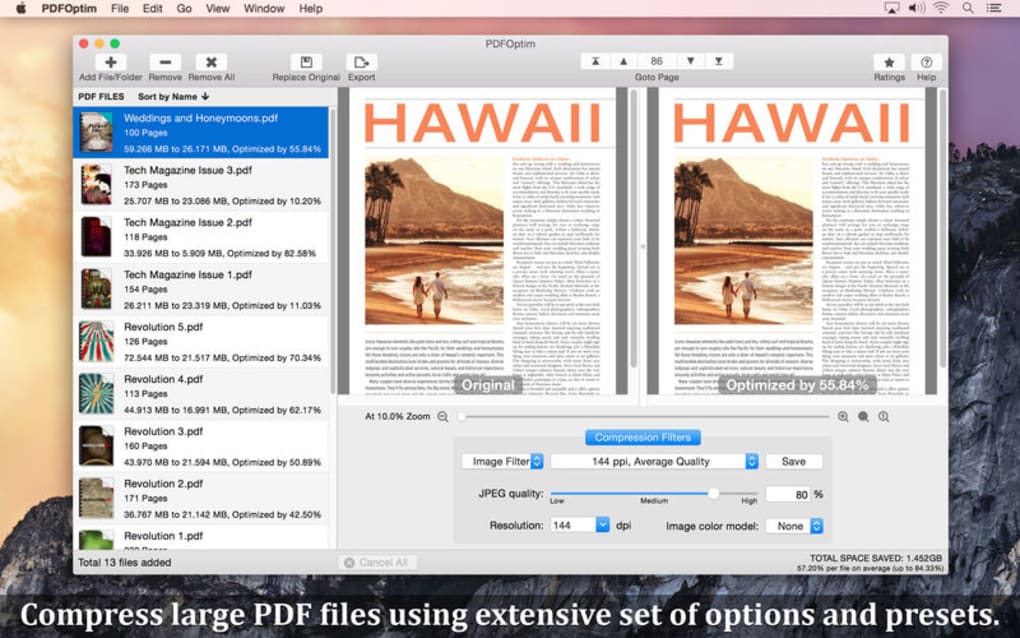
PDFOptim is a lightweight, intuitive desktop utility designed to shrink PDF files without sacrificing visual fidelity. Whether you are a student sharing lecture notes, a graphic designer handling image‑heavy portfolios, or a business professional needing fast uploads to cloud services, PDFOptim offers a fast, secure way to compress, reduce, and optimize PDFs. The program supports batch processing, letting you compress dozens of documents in a single click, while a real‑time preview pane displays the original and optimized versions side‑by‑side.
This visual comparison helps you confirm that the quality remains acceptable before you save the smaller file. PDFOptim employs a combination of image and quartz filters, preserving essential document traits such as fonts, vector graphics, and metadata. Users can also select from several colour‑model presets—RGB, Grey, CMYK, or Monochrome—giving you granular control over file size versus image quality.
The Monochrome mode, for example, strips colour information and dramatically reduces the final size, making it ideal for scanned contracts or black‑and‑white reports. The software is free to download, regularly updated for security patches, and works offline, ensuring that your sensitive PDFs never leave your computer.
Key Features
- Batch Compression: Process multiple PDFs simultaneously, saving time on large projects.
- Real‑Time Preview: Compare original and compressed files instantly with a split‑view window.
- Multiple Colour Models: Choose RGB, Grey, CMYK, or Monochrome to balance quality and size.
- Image & Quartz Filters: Advanced filters reduce image resolution and apply compression algorithms while preserving text clarity.
- Preset Profiles: Quick‑select “Web”, “Print”, and “Maximum Reduction” profiles for common use‑cases.
- Secure Offline Operation: All processing occurs locally; no files are uploaded to external servers.
- Customizable Output Settings: Adjust DPI, compression level, and embed or strip fonts as needed.
- Lightweight Installer: Under 30 MB download size, minimal system impact.
- Automatic Updates: Optional update checker keeps the app current with the latest security patches.
- Cross‑Platform Support: Available for Windows 10/11, macOS 10.14+, and Linux distributions.
Installation & Usage Instructions
Step‑by‑Step Installation
1. Download the installer: Visit the official PDFOptim website and click the “Download for Windows” (or macOS/Linux) button. The file is signed and verified, ensuring a secure download.
2. Run the installer: Double‑click the downloaded .exe (Windows) or .dmg (macOS) file. Follow the on‑screen wizard, accepting the license agreement and selecting the destination folder. The installer will automatically add a shortcut to your desktop and start menu.
3. First launch: Open PDFOptim from the shortcut. The program will perform a brief integrity check, then present the main interface with a clean, modern layout.
How to Compress a PDF
1. Add files: Drag‑and‑drop PDFs into the main window or click “Add Files” to browse your folders. For batch jobs, you can select an entire folder.
2. Select a preset: Choose from “Web Optimized”, “Print Quality”, or “Maximum Reduction”. Each preset automatically configures DPI, colour model, and compression level.
3. Fine‑tune settings (optional): Click the “Advanced Settings” button to manually set DPI, choose a colour model, or enable/disable font embedding.
4. Preview: The split‑view pane shows the original on the left and the optimized version on the right. Use the zoom controls to inspect text sharpness and image detail.
5. Compress: Press the “Compress” button. PDFOptim creates a new file with “_optimized” appended to the original filename, saving it in the same folder unless you specify a different output path.
6. Verify & share: Open the optimized PDF to confirm quality. You can now upload the smaller file to email, cloud storage, or any web platform, enjoying faster transfer speeds and reduced storage costs.
Troubleshooting Tips
If you encounter “File not supported” errors, ensure the PDF is not password‑protected; PDFOptim cannot process encrypted files without the password. For extremely large files (>500 MB), increase the allocated RAM in the advanced settings or split the document into smaller sections before compression.
Compatibility, Pros & Cons
Supported Operating Systems: Windows 10/11 (64‑bit), macOS 10.14 and later, and major Linux distributions (Ubuntu, Fedora, Debian). The application runs natively without the need for additional runtimes such as Java or .NET, ensuring a smooth experience across platforms.
Pros
- Free to download and use with no hidden fees.
- Batch processing saves time on large projects.
- Real‑time preview helps maintain quality control.
- Multiple colour‑model options give flexibility for different document types.
- Offline operation guarantees data privacy.
- Lightweight installer and low system resource usage.
- Regular updates improve security and add new presets.
Cons
- No built‑in OCR; scanned PDFs remain image‑only.
- Advanced image editing (e.g., cropping) must be done before compression.
- Limited to desktop environments; no mobile app version yet.
- Encrypted PDFs require manual password entry before processing.
- Some very high‑resolution images may lose subtle detail in maximum reduction mode.
Overall Rating: 4.5 / 5 – PDFOptim delivers a solid balance of speed, simplicity, and compression efficiency, making it a top choice for everyday PDF optimization.
Frequently Asked Questions
-
Can PDFOptim compress password‑protected PDFs?
PDFOptim cannot directly compress encrypted files. You must first open the PDF in a viewer, enter the password, and save an unprotected copy before using PDFOptim.
-
Is there a limit to the number of files I can batch process?
There is no hard‑coded limit; the practical limit depends on your computer’s RAM and CPU. For very large batches, it’s advisable to split the job into smaller groups to avoid memory overload.
-
Does PDFOptim retain hyperlinks and bookmarks after compression?
Yes. The compression algorithm works on images and embedded fonts while preserving the PDF’s structural elements, including hyperlinks, bookmarks, and form fields.
-
Can I revert to the original file after compression?
PDFOptim saves the optimized file with a distinct filename, leaving the original untouched. Simply delete the optimized version if you prefer to keep the original.
-
Is PDFOptim safe from malware and adware?
The official installer is digitally signed, and the software runs offline without third‑party trackers. Regular updates also patch any known vulnerabilities, making it a secure choice for sensitive documents.
Conclusion & Call to Action
PDFOptim stands out as a free, secure, and user‑friendly solution for anyone who needs to shrink PDF files quickly. Its batch processing capability, real‑time preview, and flexible colour‑model options make it suitable for students, professionals, and small businesses alike. While it lacks built‑in OCR and a mobile version, the core feature set is more than sufficient for everyday PDF reduction tasks. By keeping all operations local, PDFOptim respects your privacy—a crucial factor when handling confidential contracts or proprietary designs.
If you’re ready to speed up uploads, cut storage costs, and share cleaner PDFs, download PDFOptim now. The installer is lightweight, the interface is intuitive, and the first compression is completely free. Experience faster file transfers and a smoother workflow—your PDFs will thank you.







